Select Columns
Each datagrid is made up of rows and columns. For every datagrid in our platform, a default set of columns is used so that you don’t see an empty table.
However, these default columns may not provide enough information for everyone. That’s why you can add, hide, and reorder columns in the datagrid to customize the view to your needs.

Adding Columns
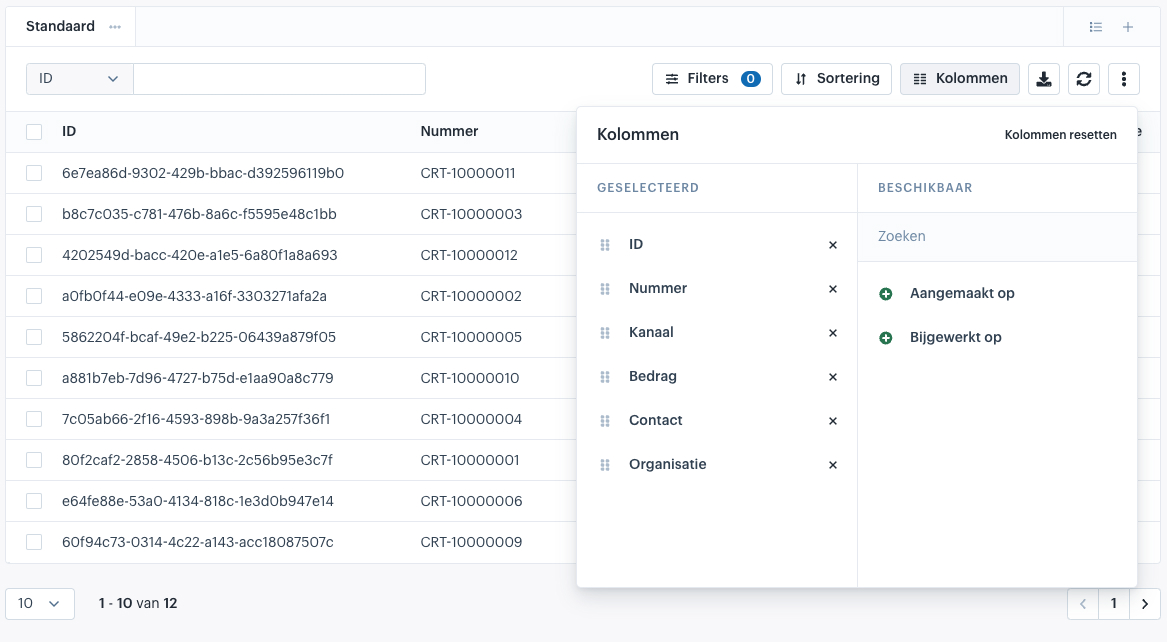
The columns menu is divided into two lists: Selected Columns and Available Columns.
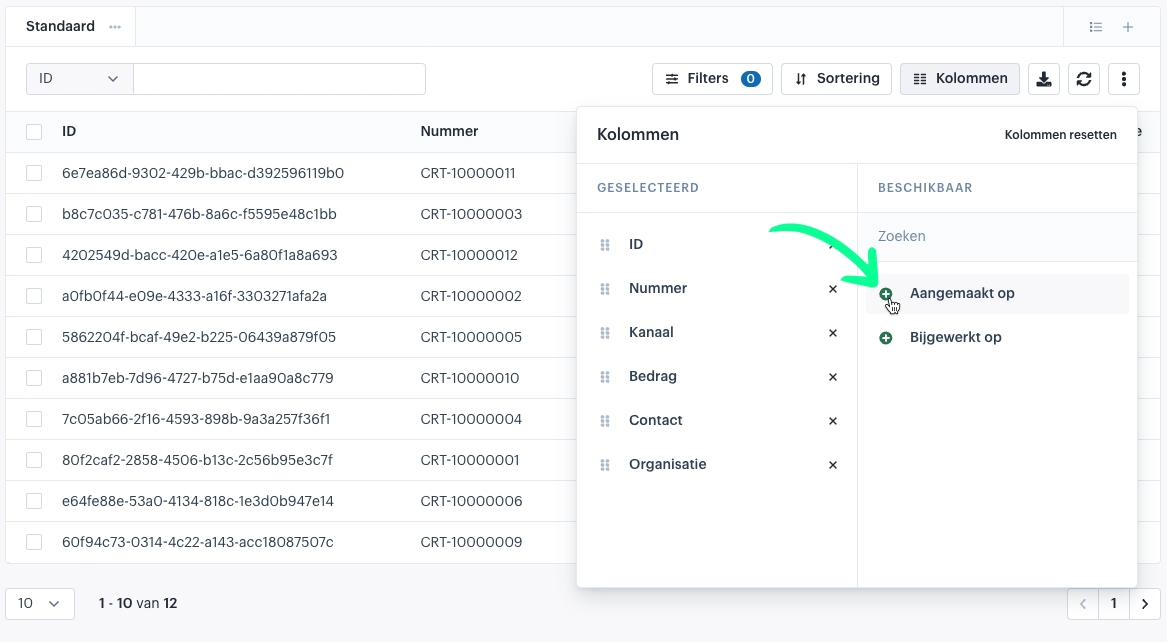
- In the Available Columns list, click the green plus icon to add a column to the Selected Columns list.
- You can also double-click a column to add it. In both cases, the column is added at the bottom of the selected columns list.
- Additionally, you can drag the column from the available list directly to the desired position in the selected columns list to place it where you want immediately.
Hiding Columns
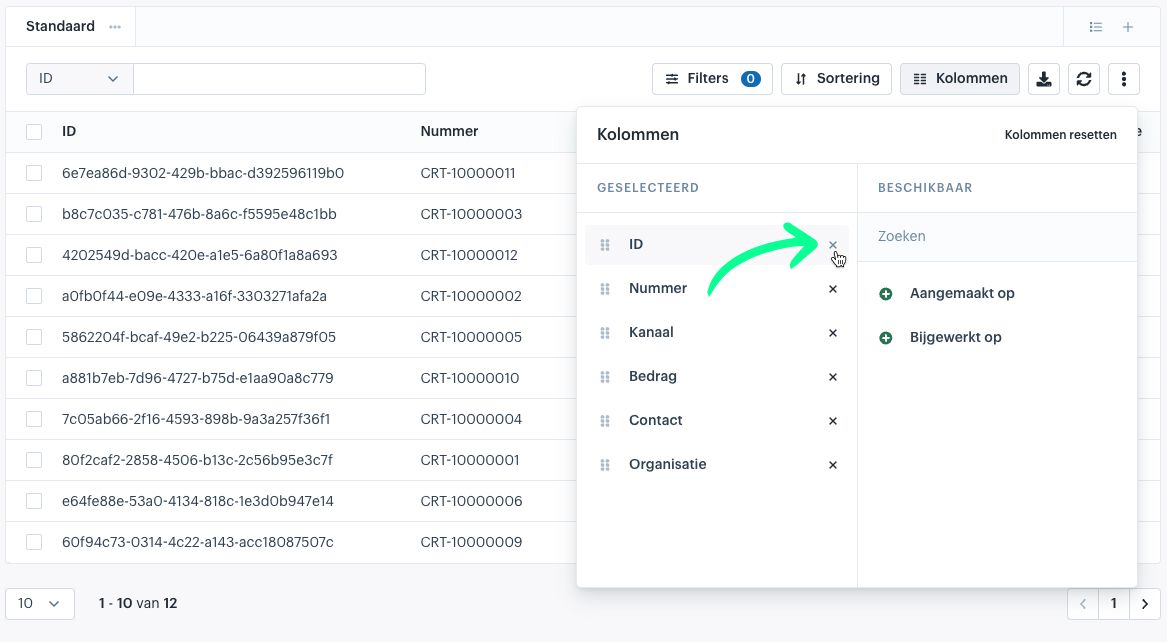
Columns that are not relevant can be hidden in three ways:
- Click the X icon
- Double-click the column
- Drag the column to the Available Columns list on the right
The Available Columns list is sorted alphabetically, so the column will not stay in the position where you drop it.
Reordering Columns
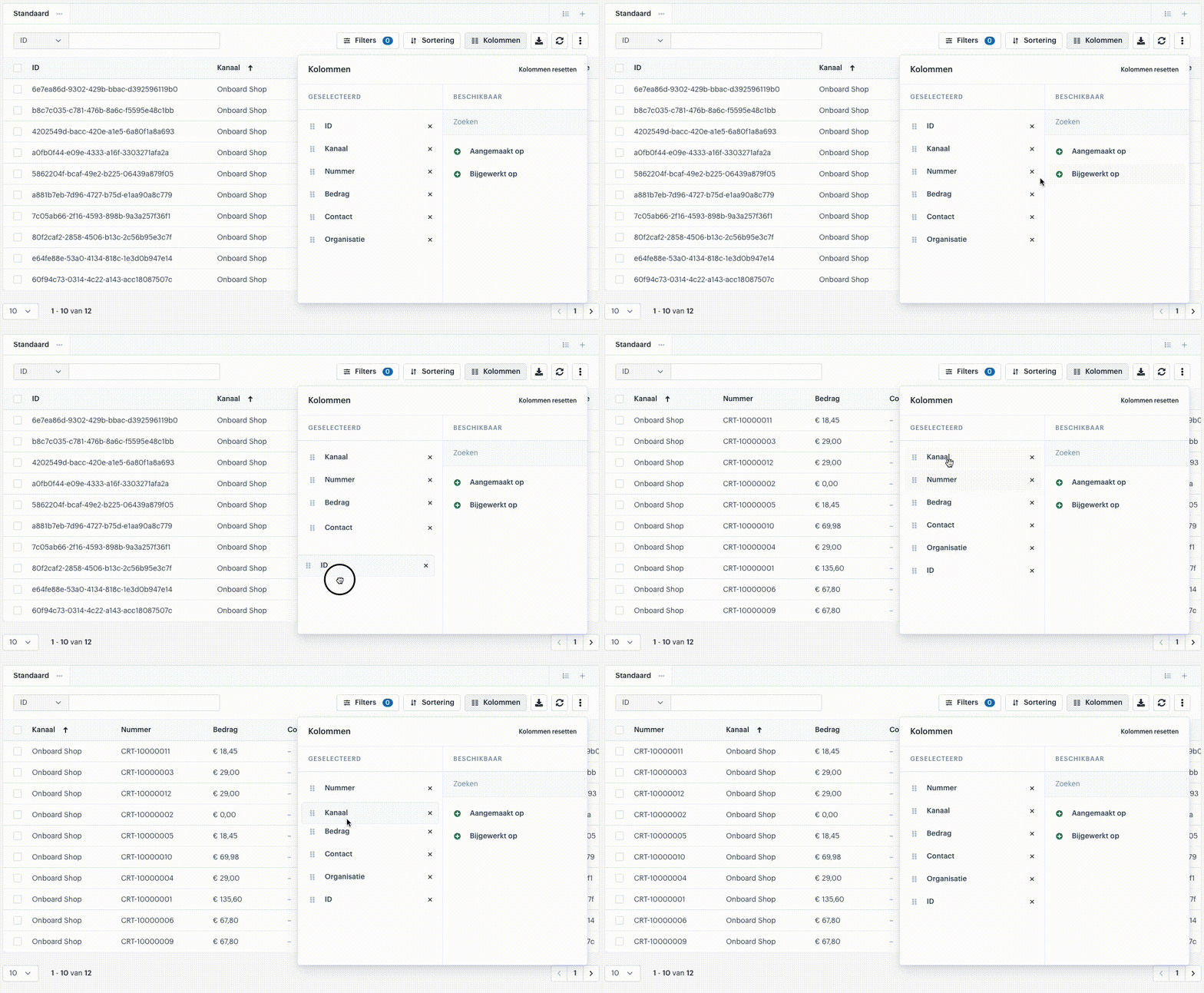
In the Selected Columns list, you can change the order by dragging columns up or down.
Once you release the column, the datagrid is updated immediately to reflect the new order.

Resetting Columns
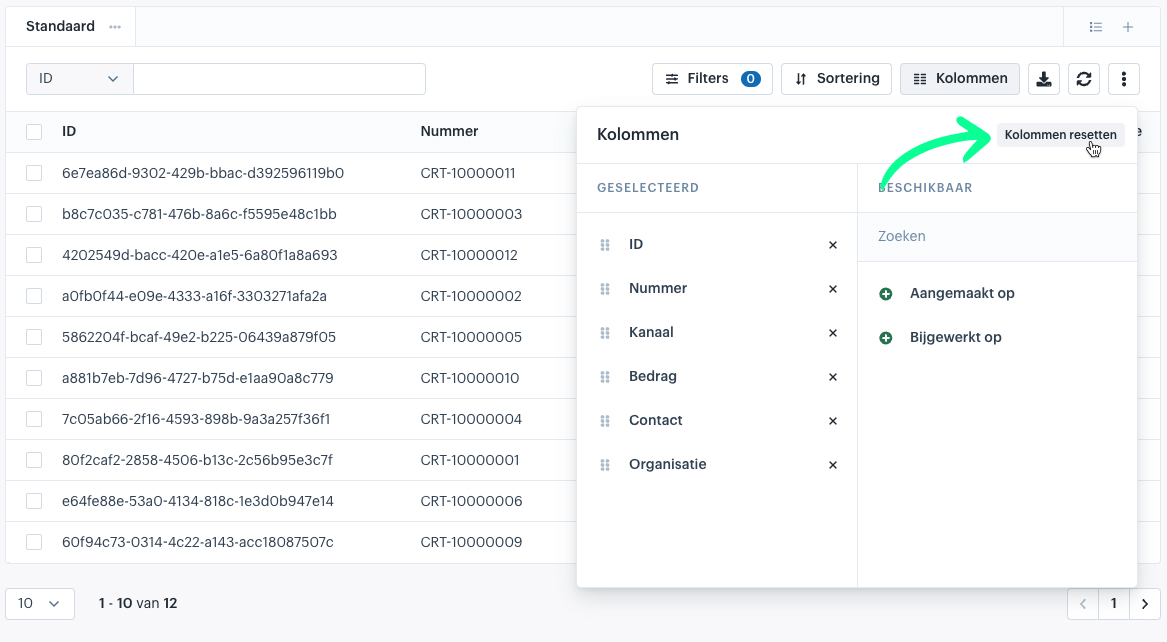
In the columns menu, click “Reset Columns” in the top-right corner.
When you do this, all columns will be hidden, allowing you to start with a clean slate.
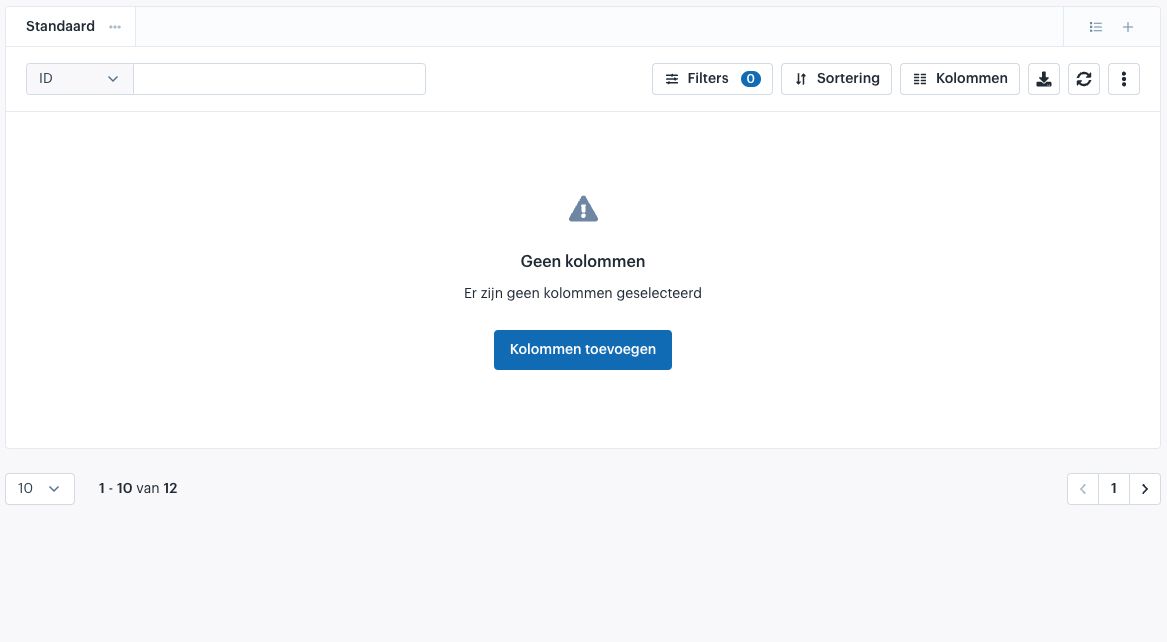
If no columns are selected, the datagrid will display a message with a shortcut to the columns menu.